You get the email on a Tuesday morning. Your bank's logo, your name in the greeting, a line about "unusual activity on your account," and a blue button. You are late for something. You click. The page looks right down to the font. You type the password you have used for nine years, the one with your dog's name and the year you graduated, and you press enter. Nothing happens. You refresh. Still nothing. You shrug and get on with your day.
Eleven minutes later, someone on another continent uses that password to log into the real bank.
Here is the thing worth sitting with: you did nothing unusual. You typed a secret into a box, which is what every login has trained you to do since 1998. The failure wasn't your attention span. It was the design. A password is a shared secret, and any secret you can type into a box is a secret you can be tricked into typing into the wrong box.
Passkeys are the industry's answer to that structural problem, and 2026 is the year they stopped being a curiosity. Google has said it now has over 800 million active passkey users. Amazon has reported roughly 175 million. The FIDO Alliance counts billions of accounts that are already passkey-eligible, whether or not their owners have noticed the prompt. If you have tapped your fingerprint to sign in somewhere recently without typing anything, you have probably already used one.
This post explains what a passkey actually is, how to set one up, and — the part most guides skip — what happens on the bad day when your phone ends up in a river.
What a passkey actually is
Strip away the marketing and a passkey is a pair of numbers.
When you create a passkey for a site, your device generates two mathematically linked keys. The public key goes to the website, which stores it the way it used to store your password hash. The private key stays on your device, locked behind your fingerprint, face, or device PIN. It never travels to the website. It is never typed, never shown, never copy-pasted.
Signing in works like a challenge and a countersignature. The site sends your device a random puzzle. Your device asks you to prove you're you — a thumb on a sensor, a glance at a camera — then uses the private key to sign the puzzle and sends back the signature. The site checks the signature against the public key it already has. Match, you're in.
The website never learns your secret, because there is no secret to learn. It only ever sees proof that you hold one.
That single change removes an entire category of attack. A breach at the company leaks public keys, and public keys are useless to a thief — they let you verify a signature, not create one. There is no password to reuse across sites, because every passkey is unique to one site by construction. And critically, the browser ties each passkey to the exact domain it was made for. A fake page at bank-secure-login.com cannot ask for the passkey belonging to bank.com. Your device simply won't offer it. The phishing attempt fails not because you were careful, but because the math has no way to cooperate.
Underneath, this is the FIDO2 standard: WebAuthn, the browser API that talks to websites, plus CTAP2, the protocol that lets browsers talk to authenticators like your phone or a USB security key. A passkey, in the strictest sense, is a FIDO2 credential that syncs — one that your platform backs up and mirrors across your devices instead of stranding it on a single piece of hardware.
Why the friction actually drops
Security upgrades usually cost you time. That is why so many of them die. Two-factor codes were correct and widely hated: find the phone, open the app, squint at six digits, type them before they expire, get it wrong once.
Passkeys move in the other direction. Reported industry figures put passkey sign-ins at roughly 93% success on the first try versus about 63% for passwords, and around 73% faster start to finish. Those numbers come from vendors with an interest in the outcome, so treat them as directional rather than gospel — but the direction matches ordinary experience. You do not forget a fingerprint. You do not mistype a face.
Think about what a password login actually costs you across a year. Say you sign in to twenty services, and four times a year one of them makes you do the reset dance: request the email, wait, click the link, invent a password that satisfies somebody's rules about symbols, fail to memorize it, write it somewhere unsafe. That is maybe forty minutes of pure friction annually, plus the low background hum of knowing your password hygiene is worse than you would admit out loud.
The passkey version is: tap, done. The security improvement is the part you'd defend in an argument. The speed is the part that makes you keep using it.
Setting one up, concretely
The flow is nearly identical everywhere, so learn it once.
Sign in to a service normally, with your existing password and second factor. Go to the account or security settings. Look for Passkeys, Sign in without a password, or Passwordless. Choose to create one. Your device prompts for your fingerprint, face, or PIN. Confirm. That's the whole thing — usually under thirty seconds.
Where the private key ends up depends on your ecosystem:
| Platform | Where passkeys live | Syncs to |
|---|---|---|
| Apple | iCloud Keychain | iPhone, iPad, Mac signed into the same Apple Account |
| Google Password Manager | Android devices and Chrome on desktop | |
| Microsoft | Windows Hello / Microsoft Account | Windows PCs, Microsoft services |
| Third-party managers | 1Password, Bitwarden, and similar | Any platform the manager runs on |
That last row matters more than it looks. If you live in one ecosystem, the built-in option is simplest. If you carry an iPhone and work on a Windows laptop, a cross-platform password manager that also stores passkeys will save you a lot of small daily irritation, because your passkeys follow you instead of stopping at the boundary between two companies' clouds.
A sensible order for a first pass: start with email, because whoever controls your email can reset everything else. Then your password manager itself. Then anything with money attached — bank, brokerage, payment services. Then the accounts you'd hate to lose for sentimental reasons: photos, cloud storage, the social account with fifteen years of messages in it. Ten minutes gets you through the list that actually matters.
The bad day: losing your device
This is the question everyone asks, and the honest answer has two halves.
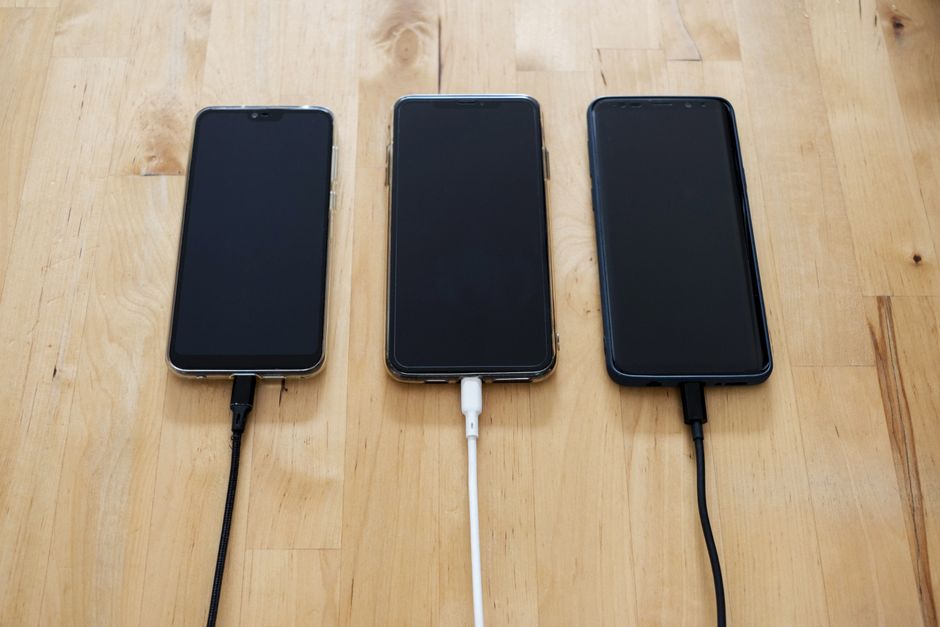
The reassuring half: modern passkeys sync. They are not welded to one phone. If your iPhone goes into a lake, your passkeys are still in iCloud Keychain, waiting for you on the replacement device once you sign back into your Apple Account. Same story with Google Password Manager on a new Android phone, or a password manager on a fresh laptop. For most people, most of the time, a lost device is an inconvenience and not a lockout.
The half that requires thought: your platform account becomes the master key. If you cannot get back into your Apple, Google, or Microsoft account, you cannot get back to the passkeys it holds. The chain of recovery now runs through one door instead of twenty. That is a genuine improvement in most respects — one strong door beats twenty weak ones — but it means the door deserves attention you may never have given it.
So do three things, today, before you need them:
- Register a second passkey on a different device. A tablet, a work laptop, a cheap hardware security key in a drawer. Two independent paths in beats one.
- Save your recovery codes somewhere physical. Most services hand you a list of one-time backup codes. Print them. Put them where you keep your passport. A screenshot in your photo library is not a backup — it is in the same cloud you just lost access to.
- Check the recovery settings on your platform account. Recovery phone, recovery email, trusted contacts if offered. Confirm they point at something you still control, not a number you gave up two carriers ago.
Ten minutes of this converts a potential catastrophe into an ordinary annoying afternoon.
What passkeys don't fix
A few honest limits, because guides that promise everything age badly.
Coverage is still uneven. The big names — Google, Amazon, Microsoft, Apple, GitHub, PayPal, eBay — support passkeys. Plenty of regional banks, insurance portals, government services, and internal work tools do not, and some won't for years. Independent scans of top websites still find confirmed passkey support in the hundreds, not the millions. You will be running a hybrid setup for a while, and you should plan for that rather than resent it.
Passkeys also protect the login, not the session. If malware is already running on your machine, or you hand over your screen to a "support agent" who called you, or you approve a transfer you shouldn't have — the strongest possible authentication was never the thing standing between you and that outcome.
And shared logins get awkward. Passwords were terrible security but excellent for handing something to a family member over dinner. Passkey sharing exists on some platforms but is clunkier. If four people use one streaming account, expect friction.
None of this argues against switching. It argues for switching where it counts and keeping a password manager for the long tail of sites still living in 2012.
Where to start
Passkeys are the rare security upgrade that asks you for less, not more. No secret to remember, nothing to type into a box, nothing a convincing fake page can talk you out of. The tradeoff is that your platform account matters more than it used to, and that tradeoff is manageable with a second device and a printed sheet of recovery codes.
If you take one action from this: open your email provider's security settings tonight and create a passkey there. It is the account that unlocks all the others, it takes half a minute, and it removes the single most valuable password you own from the reach of anyone who can build a convincing login page.
The Tuesday morning email will still arrive. It just won't have anything to take.